Transparency becomes white. Size can grow.
JPG · 90% · original dimensions

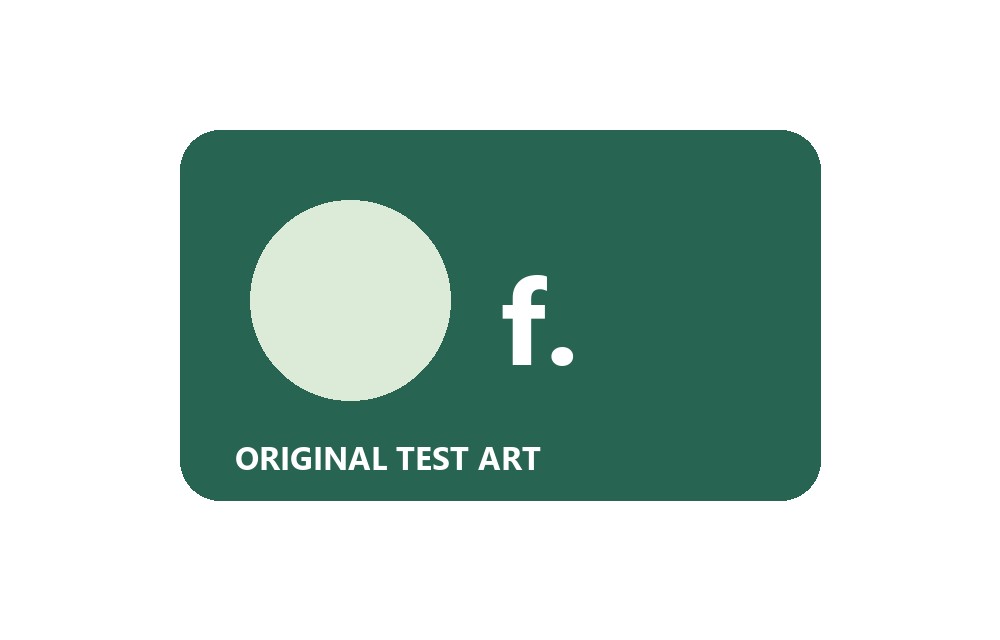
9,130 B → 20,741 B
Original LM Tools test artwork, not a photograph. Conversion is not always compression. Check the white corners and unchanged dimensions.
JPG, PNG or WebP · up to 20 files
Add a few images to see their size, preview your changes and download the result.
Quick setup
Save a reusable recipe for this tool. Files and results are never saved. Names, text watermarks and PDF page numbers may be included; avoid sensitive text. How saved settings are stored (new tab)
Your original files stay untouched.
Prepare JPG copies for a form, listing or email. Start at 90% quality with the original dimensions. Check fine text and white edges before saving.
Back to workspace ↑Choose up to 20 JPG, PNG or WebP files. Keep the originals; the tool creates new JPG copies.
JPG at 90% quality is selected to start. Dimensions stay unchanged unless you choose resizing, cropping or rotation. Transparent areas become white.
Compare the results with the originals. Save one file directly or package several as a ZIP. Conversion can increase file size.
A transparent image becomes a JPG on white paper, with no crop or upscaling. The tested example below uses original LM Tools artwork and actual browser output.
Original synthetic charts are not user documents or photographs. Real interface captures and licensed photos are labeled separately. Browser encoding can vary. Grain charts use KiB; the photograph uses KB. Match the unit shown in each example.
JPG · 90% · original dimensions
9,130 B → 20,741 B
Original LM Tools test artwork, not a photograph. Conversion is not always compression. Check the white corners and unchanged dimensions.
JPG · 90% quality · original dimensions
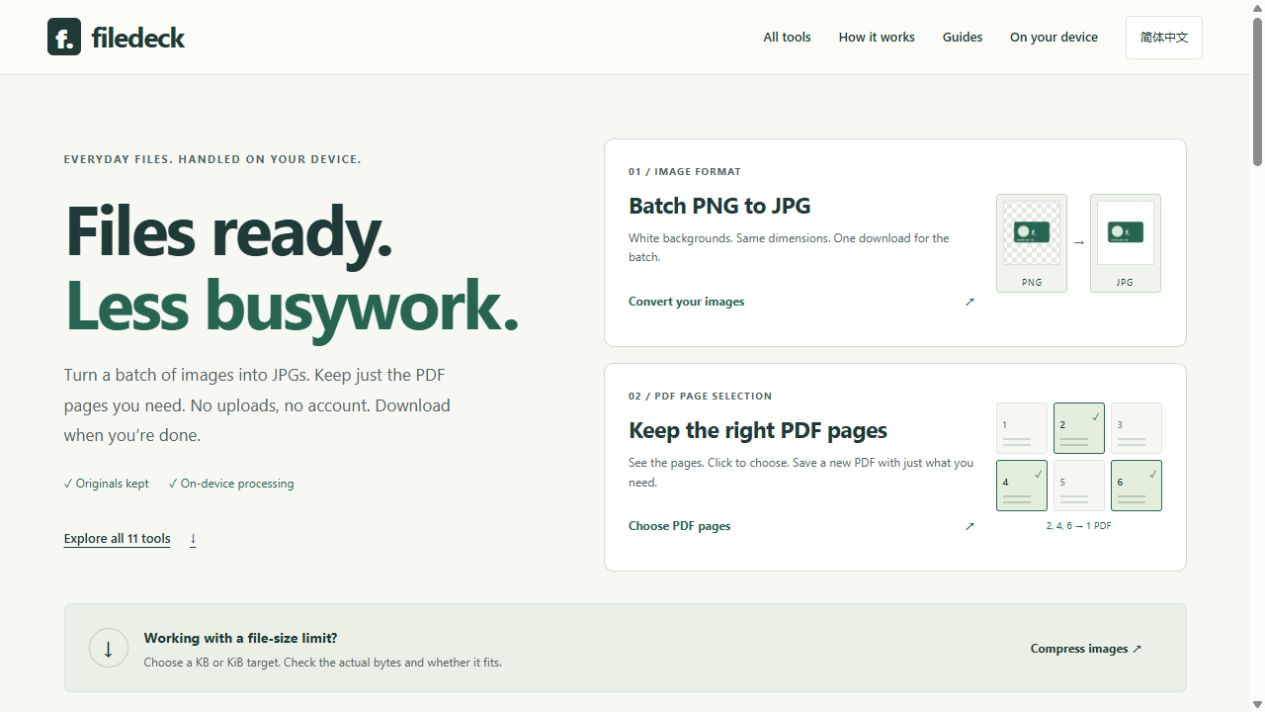
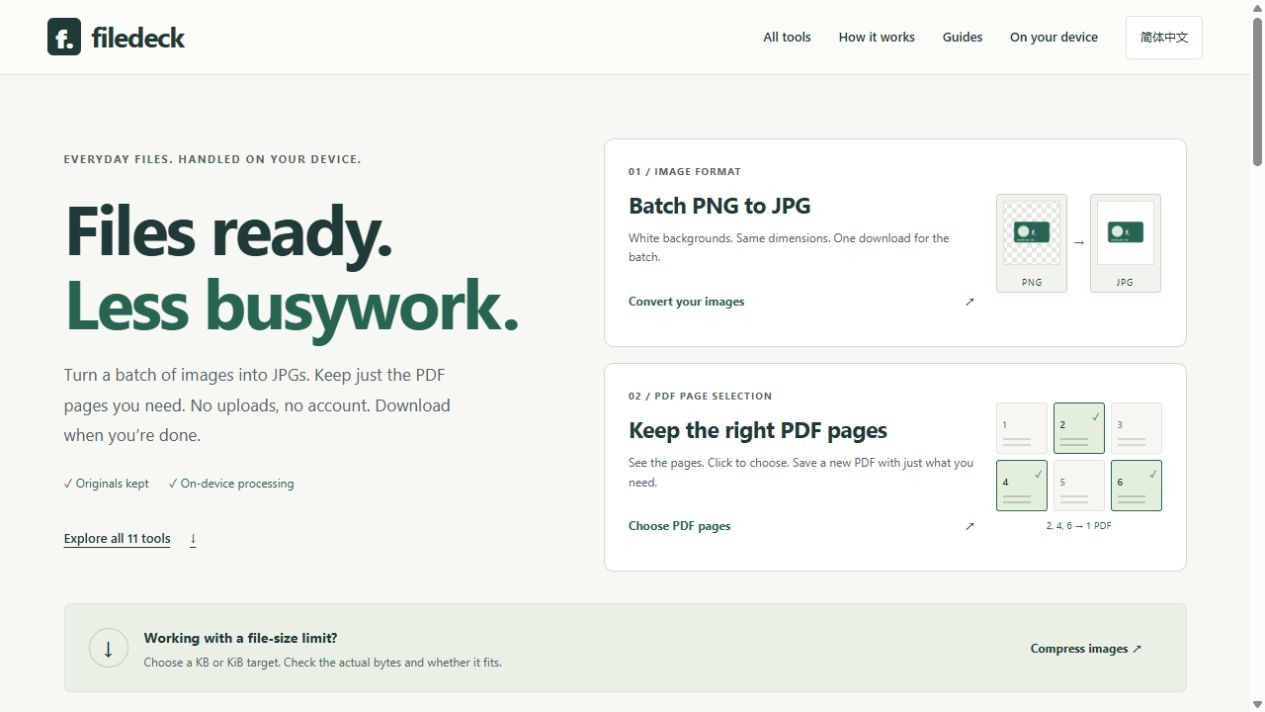
319,327 B → 75,928 B
Captured from LM Tools’s actual local homepage and saved as PNG for this test; the initial browser capture was JPEG. It contains no user files. Compare small text and fine borders; PNG may remain the better choice for screenshots.
Adds to the current queue without replacing files. Applying settings clears older results; originals stay untouched.
Original examples, clear steps and honest limits. Download the files and repeat the checks.
Turn mixed images into consistently named JPGs, limit the longest edge and download one ZIP. A complete browser-based hand-off workflow with editable settings.
Read the illustrated guide (new tab) 02 / IMAGEKeep the right dimensions, understand transparency and check text edges before saving a JPG. A practical guide with original before-and-after files.
Read the illustrated guide (new tab)JPG is useful for ordinary photos without transparency. PNG supports transparency without a quality slider. WebP supports transparency and a quality setting for lighter web images. Check that the destination accepts your chosen format.
Not with a maximum edge of 0 and no crop or rotation. The converter starts at edge 0. A maximum edge, crop or rotation setting can change dimensions.
The original file stays unchanged. The new JPG uses lossy encoding and a white transparency background; converting that JPG back cannot restore lost detail or transparency.
Not in this version. Export them as JPG, PNG or WebP first. This tool also does not preserve animations.