LM Tools

Compress images to a size limit

Try a KB target. Check every result. Keep the detail you need.

Read the guide
01Add your images02Make them yours03Download the batch

Your images

Drop your images here

JPG, PNG or WebP · up to 20 files

NO FILES YET15 MB / file · 60 MB / batch
A little less file chaos.

Add a few images to see their size, preview your changes and download the result.

Your recipe

START WITH A TASK

Applies settings only. Changing settings clears existing results; originals stay untouched.

Saved settingsOn this device

Save a reusable recipe for this tool. Files and results are never saved. Names, text watermarks and PDF page numbers may be included; avoid sensitive text. How saved settings are stored (new tab)

No saved recipes for this tool yet. Up to 20 across all tools.

Output format

A smaller file, ready for the web.

Target file size (optional)
KB

0 = no limit. Check which unit the receiving website uses.

Image quality
80%
Smaller fileSharper image
Maximum long edge
px

Keeps proportions. Never enlarges. Use 0 for original size.

More settings
Centered crop
Rotate clockwise
Text watermark
Batch name (optional)

my-images-01.webp

Your original files stay untouched.

Add images to get started
Guide & FAQ

How to use · Compress images to a size limit

Work towards an upload limit for JPG or WebP. Match KB or KiB to the destination, then check actual bytes and image quality. A target is an upper limit to try, not a guaranteed result.

Back to workspace ↑
  1. 01

    Set the destination’s limit

    Choose JPG or WebP and enter the limit. KB means 1,000 bytes; KiB means 1,024. The shortcuts start at 80% quality and keep the original dimensions.

  2. 02

    Process and compare

    Inspect fine text, faces and edges. The tool can lower encoding quality to try to fit; it does not automatically reduce dimensions to force a result.

  3. 03

    Save, or adjust and retry

    Check each pass or fail label. If a target is missed, review the smaller-dimensions suggestion and process again. Save one image directly or several in a ZIP.

EXAMPLE · NOT YOUR FILES

A simple example

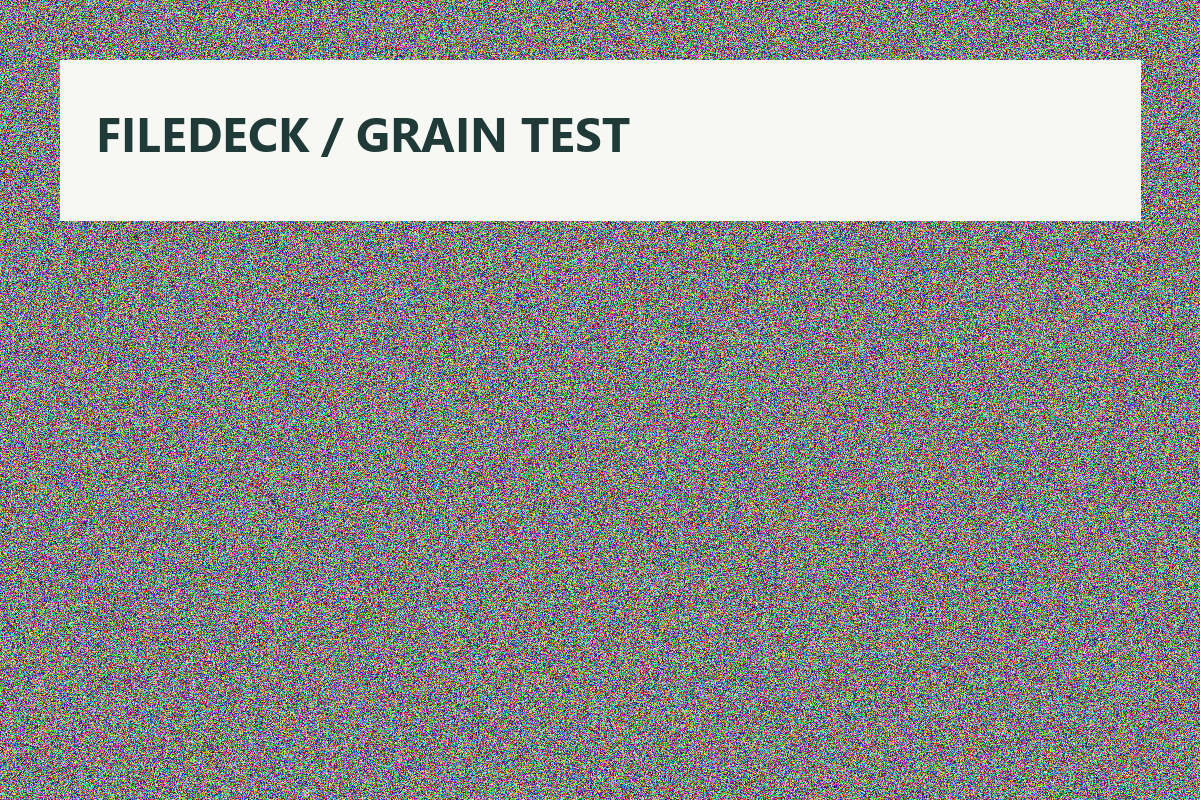
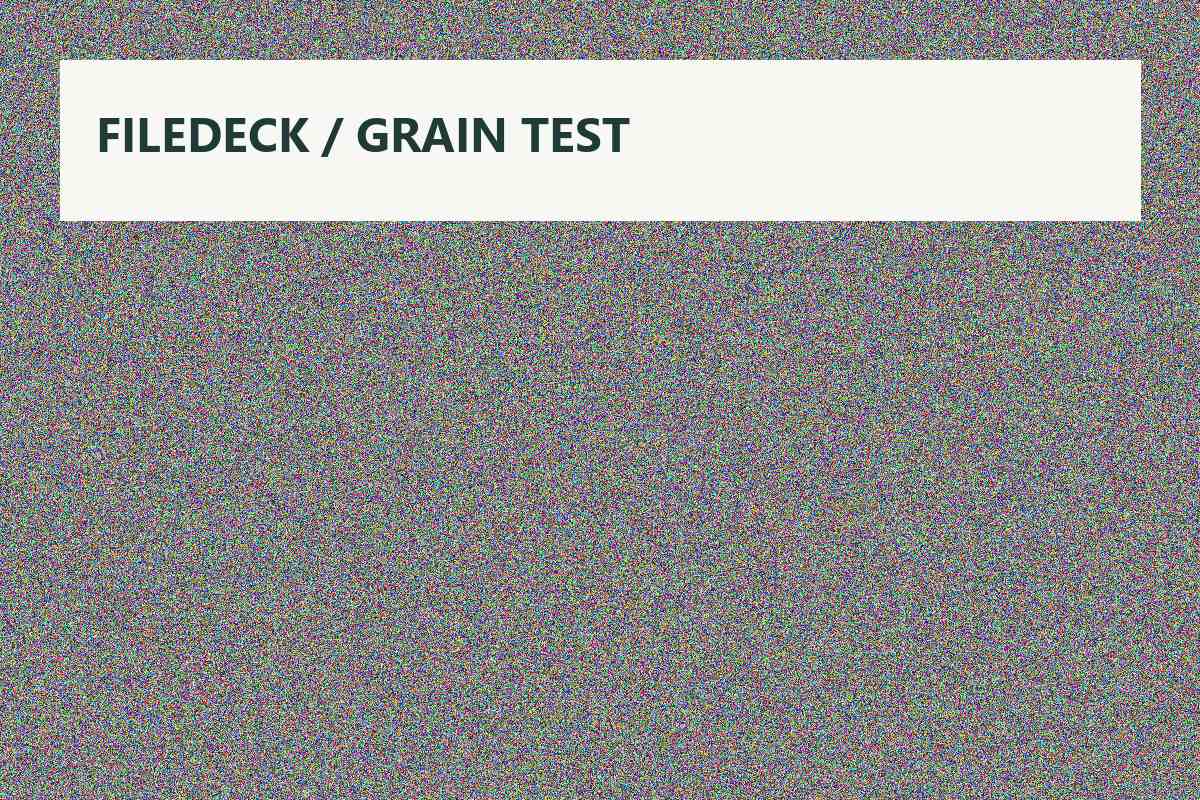
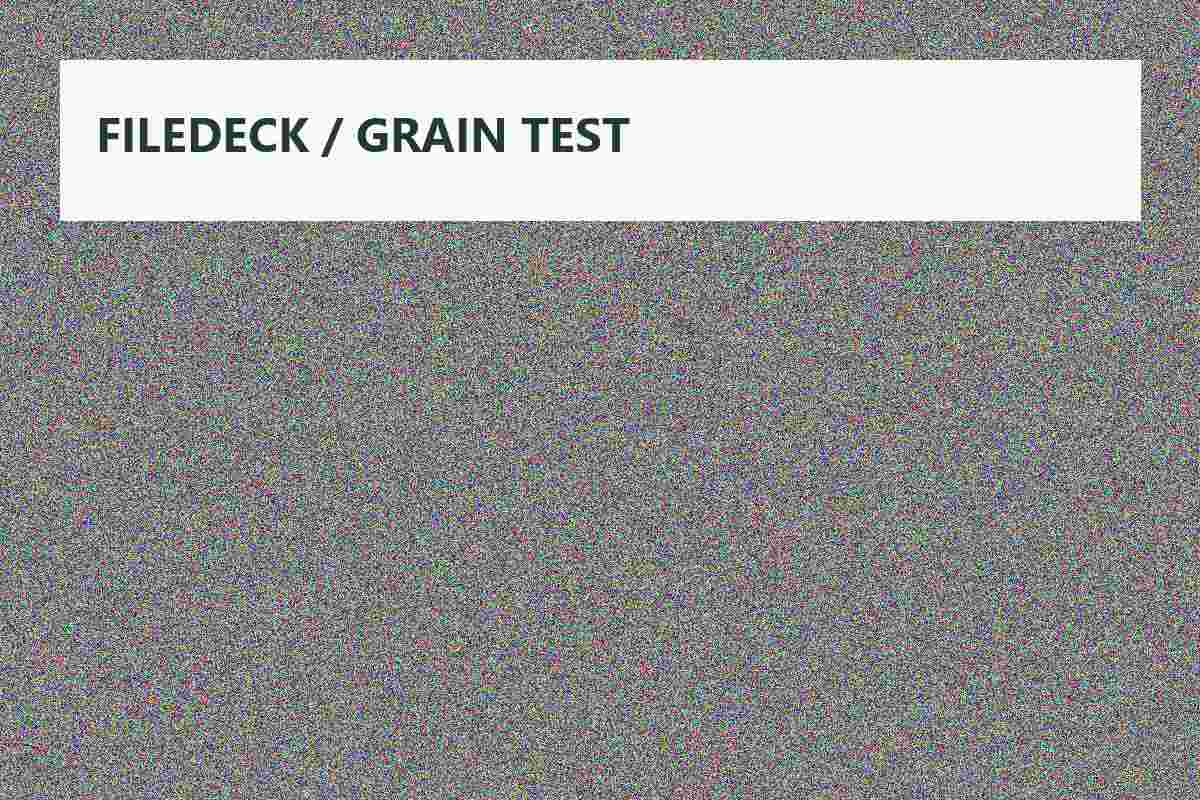
The tested grain chart below deliberately has a lot of detail. A normal target and an unrealistically small target demonstrate both a passing result and the target-not-met warning.

Original grain test chartJPG · 80% · no resizing
Actual bytes and target status · not a size guarantee
TRY THE ACTUAL TEST FILES

Inspect the files. Repeat the test.

Original synthetic charts are not user documents or photographs. Real interface captures and licensed photos are labeled separately. Browser encoding can vary. Grain charts use KiB; the photograph uses KB. Match the unit shown in each example.

Try a 200 KiB target on a detailed test chart.

JPG · 80% starting quality · target 200 KiB · edge 0

2,368,997 B → 201,327 BWithin target

An original synthetic grain chart, not a photograph. The encoder can reduce quality to try to fit the target; inspect detail before saving.
Source file ↓Tested browser result ↓

A 1 KiB target is deliberately too small.

Same chart · JPG · target 1 KiB · edge 0

2,368,997 B → 73,350 BTarget not met

A missed target stays clearly marked. The engine does not shrink dimensions automatically to force a match.

Source file ↓Tested browser result ↓

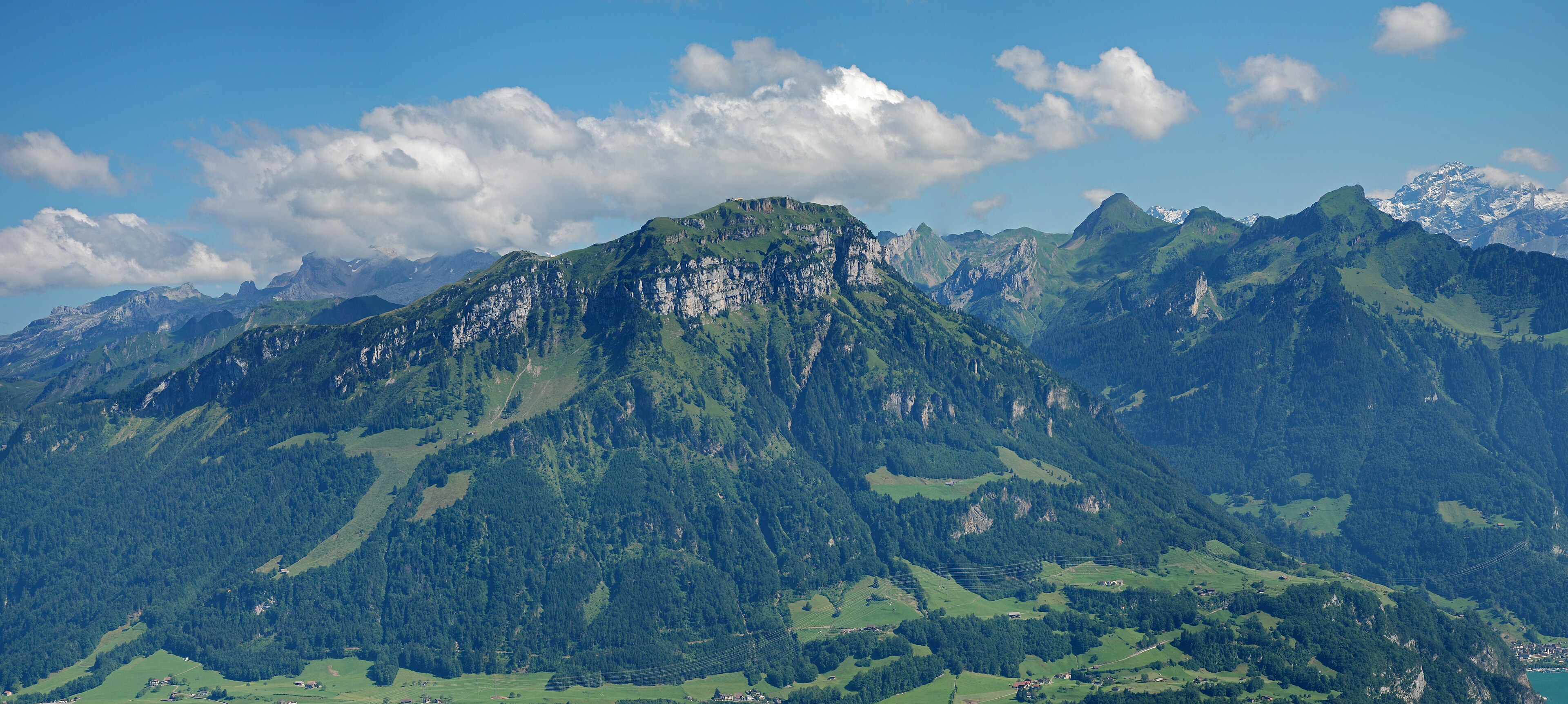
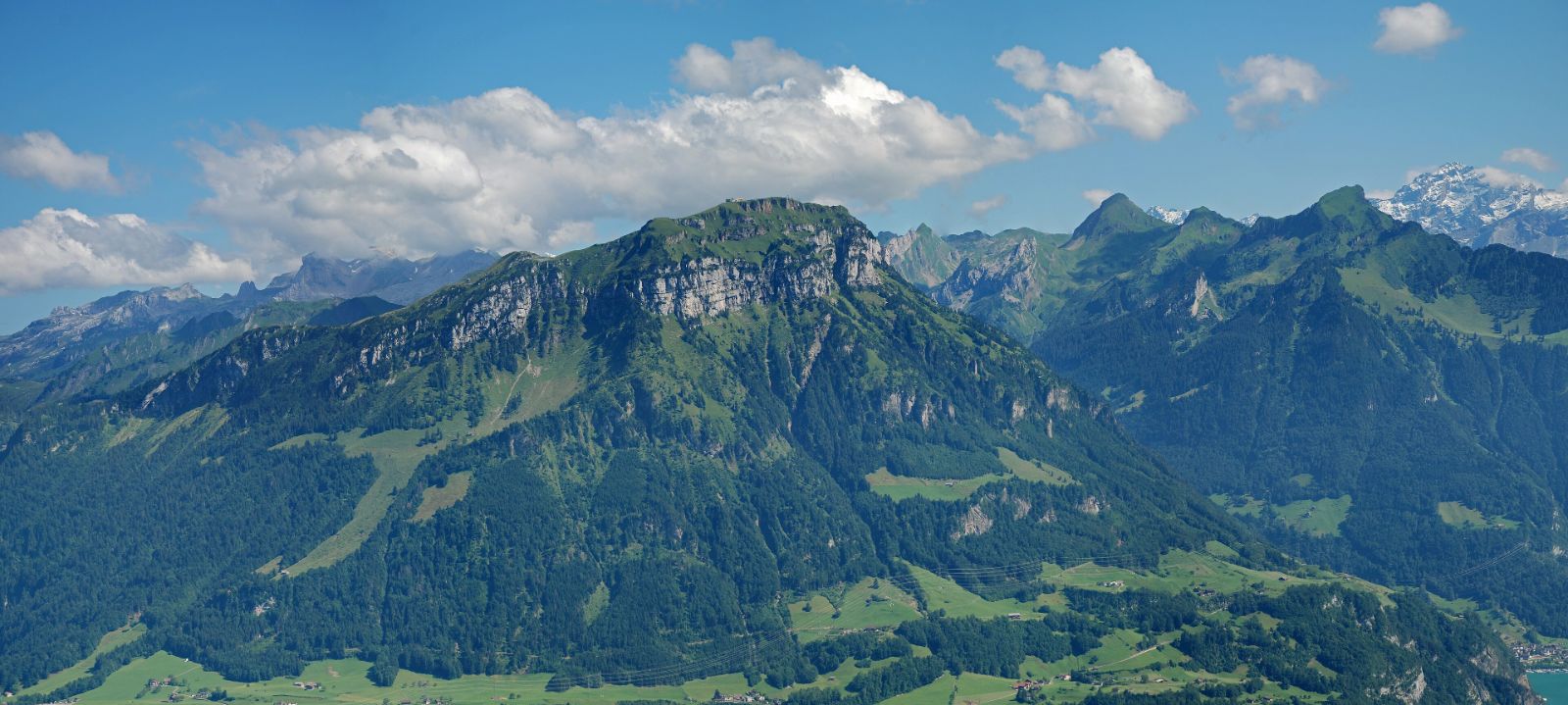
A photographic panorama, prepared for sharing.

JPG · 80% starting quality · edge 1600 px · target 500 KB

Load original previewLoads on demand to keep the page lighterTest source
Test source
Actual browser output

Photo: Hannes Röst · CC BY-SA 3.0 · source, changes & license

1,610,954 B → 202,308 BWithin target

A real stitched panorama by Hannes Röst, not a generated photograph. This example resizes and re-encodes it. Inspect distant detail before sharing; results vary with the image and browser.

Source file ↓Tested browser result ↓

Adds to the current queue without replacing files. Applying settings clears older results; originals stay untouched.

PRACTICAL FILE GUIDES

Know what changes. Get it right.

Original examples, clear steps and honest limits. Download the files and repeat the checks.

Before you start

  • Up to 20 JPG, PNG or WebP inputs; 15 MB per file, 60 MB per batch and 24 megapixels per image.
  • Shortcuts start at JPG 200 KB, JPG 500 KB or WebP 200 KB with 80% quality and original dimensions.
  • Choose KB (1000 bytes) or KiB (1024 bytes) to match the receiving site. A target is attempted, not guaranteed.
  • PNG output ignores quality and target-size controls. Resize it or choose JPG/WebP. JPG fills transparent areas with white. Re-encoding may remove metadata.

A few useful answers

Can I guarantee a file under 200 KB?

No. The tool tries lower encoding qualities for JPG and WebP, but does not keep shrinking dimensions to force a target. It marks results that miss the target; you can choose a smaller longest edge and try again.

Does compression keep exactly the same quality?

JPG and WebP quality settings can lose detail. Use the original/result comparison to decide whether the trade-off works for your image.

What happens to transparent images?

PNG and WebP support transparency in this tool. Converting to JPG fills transparent areas with white.

Are the files sent to a server?

No. Image processing is local to this browser. Leaving or refreshing the workspace clears its files and results. Download what you want to keep first.

Return to all tools?

Returning to the homepage will clear the files and downloads in this workspace. Your original files are unchanged. Continue?

Return home