Count positions, not printed page labels
A cover sheet or unnumbered contents page can make the PDF position different from a printed number. LM Tools uses the physical page position starting from 1. If the sheet marked “1” is the fourth page in the file, select position 4. Check the source in a PDF viewer first.
This tool copies selected page content into a new file and leaves the source untouched. It does not edit the source text, redact information or guarantee preservation of bookmarks, attachments and other document-level structures. Removing pages is not the same as securely redacting content within a retained page.
Extract pages into one file or several groups
- Open Extract PDF pages and add one PDF. The source may contain up to 300 pages and must be no larger than 20 MB.
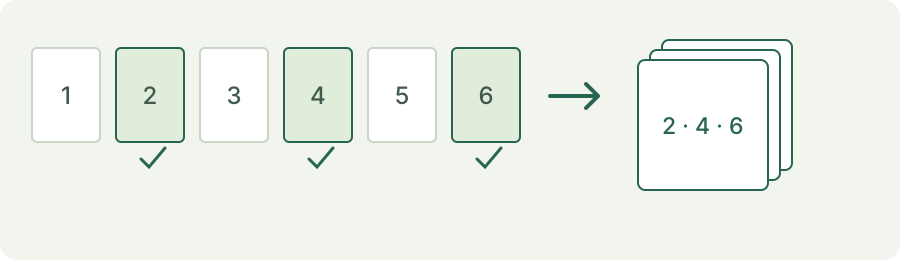
- Choose Extract selected pages. Enter 2,4,6 to combine those three positions in one PDF, or 1-3;4-6 to create two separate PDFs. Use ordinary commas, semicolons and hyphens.
- Read the output plan. It lists the number of new files and the source positions included in each. Out-of-range, reversed intervals and duplicate pages within one group are rejected.
- Extract, then open the generated PDF using your browser or system viewer. Check its page order and content before sending it. Download individual files, or prepare a ZIP when there is more than one result.
One PDF per page is a separate mode. It makes one new document for every original page, subject to a maximum of 100 output files. Switch back to extraction to keep your entered custom ranges.
Repeat the six-page example
Download the original LM Tools six-page PDF. Its pages include the text “SOURCE PAGE” followed by their original number, so you can verify the output without guessing from its filename. Enter 2,4,6 and inspect the plan: one PDF with three pages.
The published browser output is 1,764 bytes; the source is 2,868 bytes. An independent PDF reader confirmed that the new document contains source pages 2, 4 and 6 in that order. Encoding and metadata can change byte counts, so page identity and order are the important checks.
Check limits and keep your downloads
Encrypted PDFs, interactive forms and digitally signed files are not supported. Use a regular page-only copy when appropriate. If import fails, your existing file and results remain available. To try a different source, remove the current document first.
A ZIP is limited to 150 MB of generated results. Larger results can be downloaded individually. Changing the range or mode invalidates older results, so process again after a change. Files remain in this workspace only while the page stays open; refreshing or leaving clears them. The Open PDF link uses a browser or system viewer, and a PDF badge in the result list is not a rendered thumbnail.
Ready to try it with a file?
Use the original test-file button in the tool’s example section. Review settings before processing and inspect the actual result.
Open the workspace ↗