Choose the material, not just the page numbers
Use this workflow for ordinary, unencrypted page-only PDFs such as a report excerpt, meeting hand-out or selected reference pages. Read the material first and decide what the recipient actually needs, including any context or supporting page.
Selecting pages is not secure redaction. Content, annotations or other information on retained pages can still be present. Removing a visible page is not a way to certify a document free of sensitive information. Inspect important files with an appropriate PDF viewer before sharing.
Select, group, review and save
- Open the PDF-sharing task and choose one supported PDF. The limit is 20 MB and 300 pages.
- Use page thumbnails to select pages, and open a larger preview when you need to inspect a page. Selection follows positions in the source file.
- Keep the selection together as one PDF, or create additional output groups for separate recipients or topics. Check the output plan for every group.
- Generate the files. Save a single PDF directly, or use ZIP for several outputs. Download only the outputs you intend to share.
- Open the downloaded files, check their first and last pages, orientation and order, then send them using your own communication tool.
A download action prepares or saves a local file. LM Tools does not email it, create a shared drive folder or manage recipient permissions. Do not leave the workspace until you have saved the required outputs.
One excerpt or two separate documents
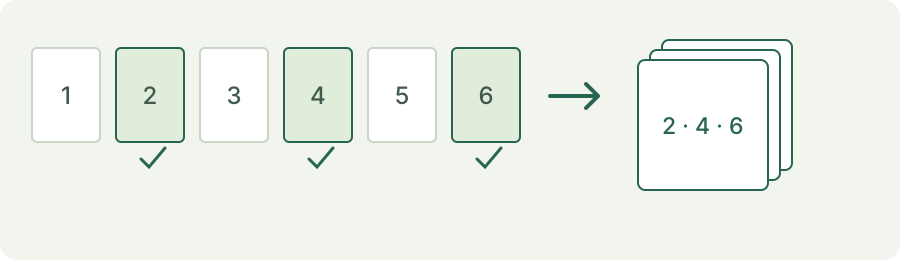
In the six-page test source below, enter 2,4,6 to create one three-page PDF in that order. Enter 2;4,6 to create two PDFs: the first contains source page 2; the second contains source pages 4 and 6. The visible output plan lets you check the grouping before running it.
A cover can make the second physical page display a printed page number of 1. Always use source positions, not printed labels, when entering numbers. Thumbnail previews help identify the right page, while the saved output is the final thing to check.
Keep the original and verify the copy
The original PDF is not modified. The new file copies selected page content, sizes and rotation; document-level bookmarks or attachments may not carry over. Encrypted documents, interactive forms and digital signatures are not supported in this version.
After a failed import, keep the current document and results until you decide to remove them. Changing page selections clears earlier outputs, so generate and inspect a fresh copy. A partial result or a requested download is not proof that every intended document was saved.
Ready to try it with a file?
The task opens the working tool. Try its sample files first, then use your own. Review settings and inspect every output before saving.
Open the workspace ↗